
Feature · Workflows
Workflows: processes that run by themselves
Workflows in Kibi Scada start on an alarm, when a device goes offline, when a sensor value crosses a threshold, on a schedule or manually. They check conditions and notify, start an escalation chain, control devices or assign weekly plans.
- Triggers: alarm, device offline or back online, sensor value, schedule, manual
- Conditions with yes/no branches, waiting times and time windows
- Actions: notify, start an escalation chain, control a device, assign a weekly plan
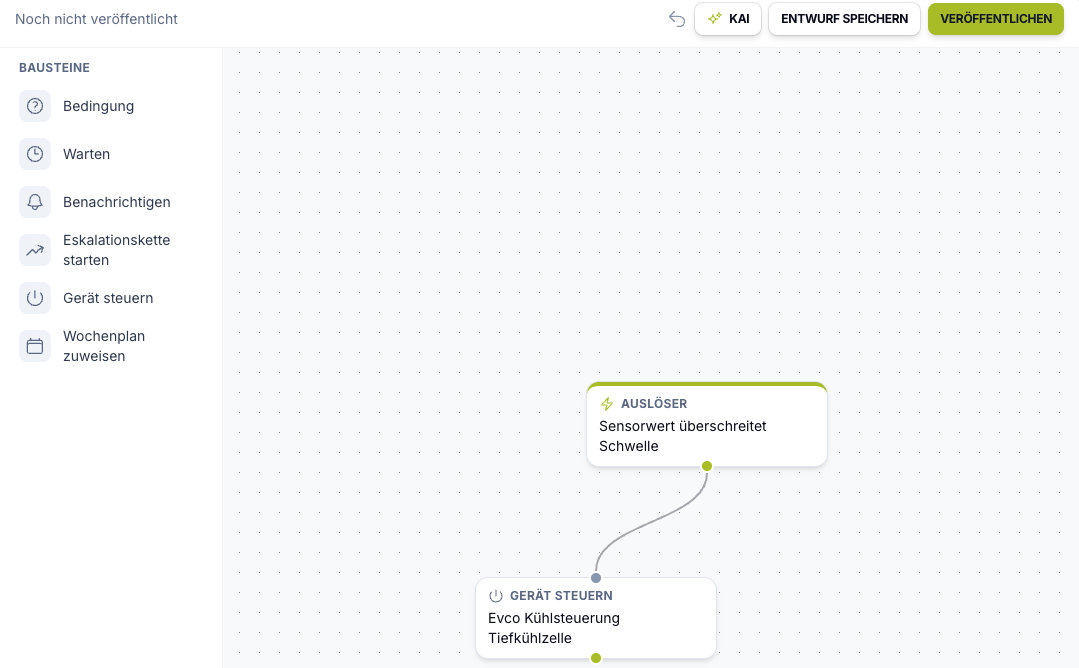
Auf einen Blick
What happens when nobody is watching?
At night, at weekends or during rush hour: a workflow takes the next steps according to fixed rules and records every run.
Typische Bausteine
Arbeitsweise
How do I create a workflow?
You create workflows in the control centre under “Processes”. If you wish, we support you with the setup.
Choose a trigger
For example an alarm, a device going offline, a sensor value above a threshold or a schedule such as “weekdays at 8:00”. You narrow it down to devices and sites.
Build the flow in the editor
You assemble conditions, waiting times and actions as building blocks. If you like, Kai, the AI assistant, drafts a first flow from your description; you review and adjust it.
Publish and track
Once published, the workflow runs on its own. Under “Runs” you see every run with status, steps and errors; running runs can be cancelled.
Im Detail
What a workflow can do
A workflow consists of exactly one trigger and up to 50 building blocks: conditions, waiting times and actions. Parallel branches are possible.
Examples
Examples from commercial kitchens
This is what typical workflows look like. Each consists of a trigger, optional conditions and one or more actions.
- Cold room too warm: sensor value above threshold → notify kitchen management → wait 15 minutes → if the value is still too high, start the escalation chain
- Alarm not acknowledged: alarm triggered → wait 10 minutes → “Alarm still open?” → start the escalation chain
- Device offline: notify the site contacts by email or phone only within the time window Mon–Fri 6 am–8 pm
- Holidays: schedule → send a different weekly plan to compatible food distribution devices
- Sensor value controls device: value above threshold → switch on a compatible switching output
Building blocks
Triggers, conditions and actions
A workflow starts with exactly one trigger. Conditions branch the flow, actions carry it out.
- Triggers: alarm triggered, device offline, device back online, sensor value crosses threshold, schedule (recurring or one-off), manual
- Conditions: alarm still open, check sensor value, device online, within time window; plus waiting times of up to 7 days
- Notify by email, phone call or app to contacts of the device, site or device group, with device name, site, alarm text and reading in the message
- Start an escalation chain, control compatible devices, assign a weekly plan
Scope
Workflows, escalation chains and remote configuration
Workflows do not replace alarms or escalation chains, they connect them. An escalation chain works through its levels; a workflow decides when it starts and what happens before or alongside it.
- Alarms and limit values define when something is critical
- Escalation chains notify level by level until someone responds
- Remote configuration and weekly plans determine how devices run; a workflow can assign a weekly plan or switch a device
- Every run is recorded in the history; if a step fails, it is retried automatically and the responsible person is informed
Einsatzfelder
Which operations are workflows for?
Wherever deviations must be handled reliably, even outside working hours.
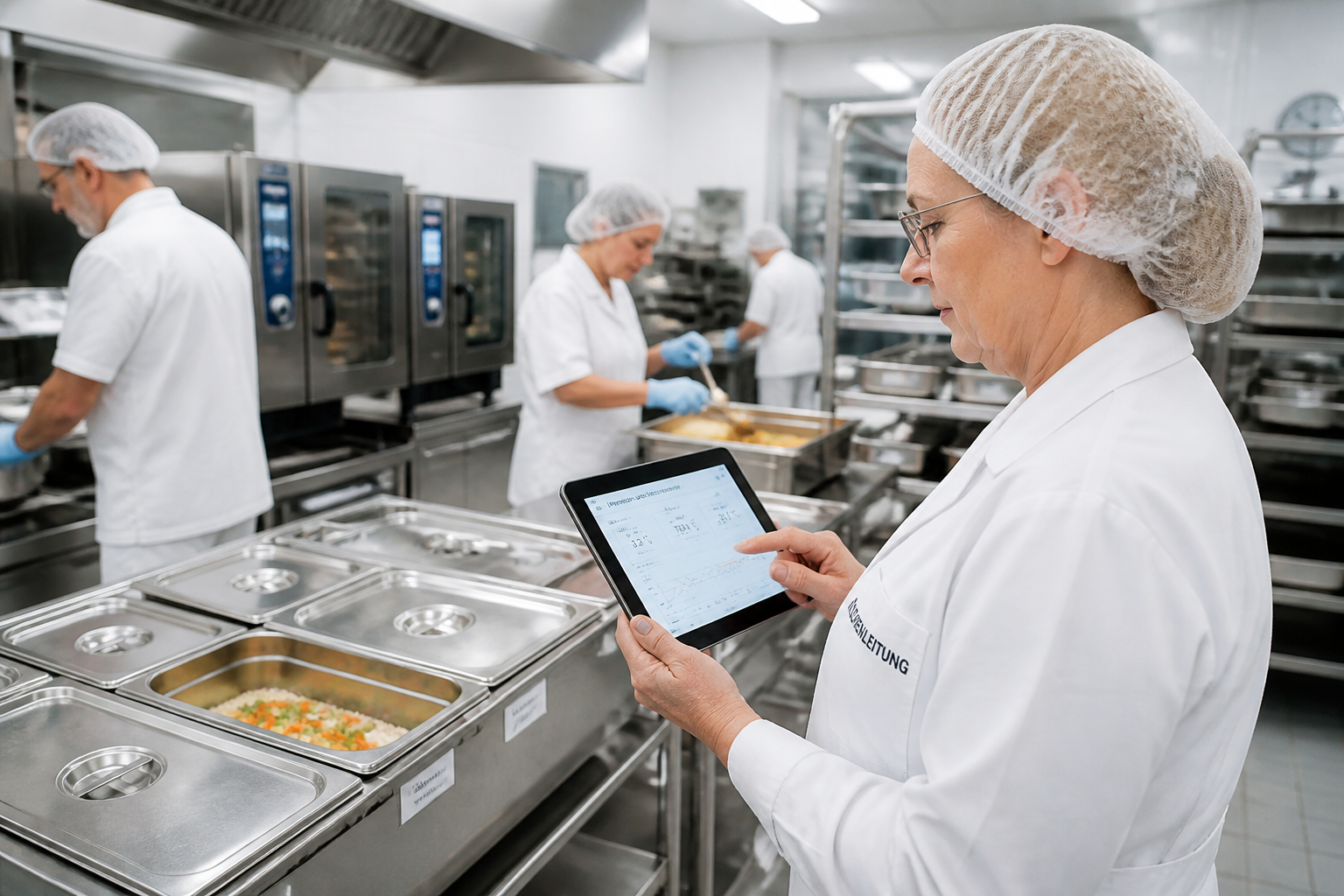
Hospitals
Distributed kitchen, technical, and hygiene teams need a platform that neatly consolidates alert pathways, documentation, and location data.
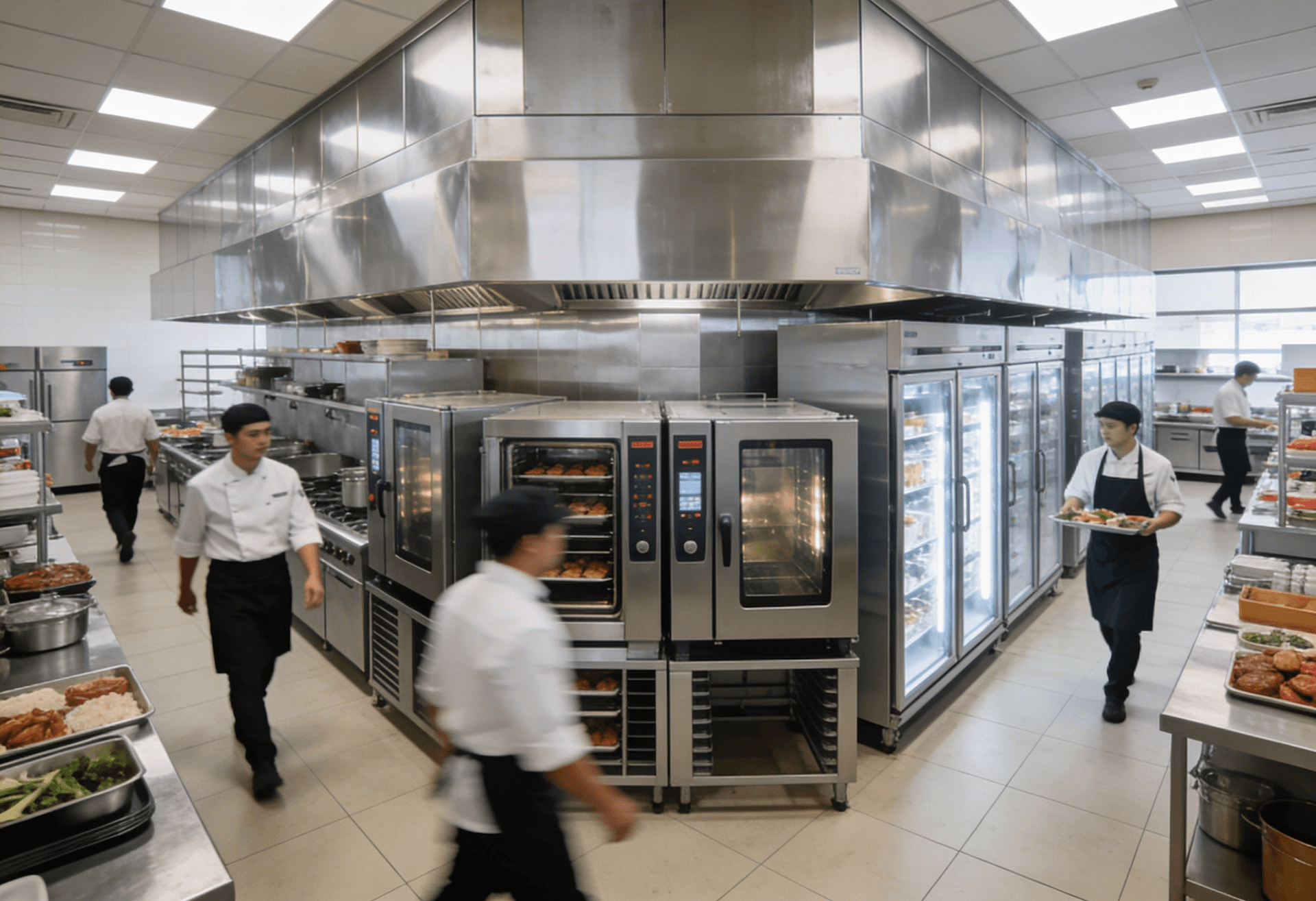
Large-scale kitchens
High documentation requirements, numerous devices, and tight operational windows make seamless transparency on the platform especially valuable.
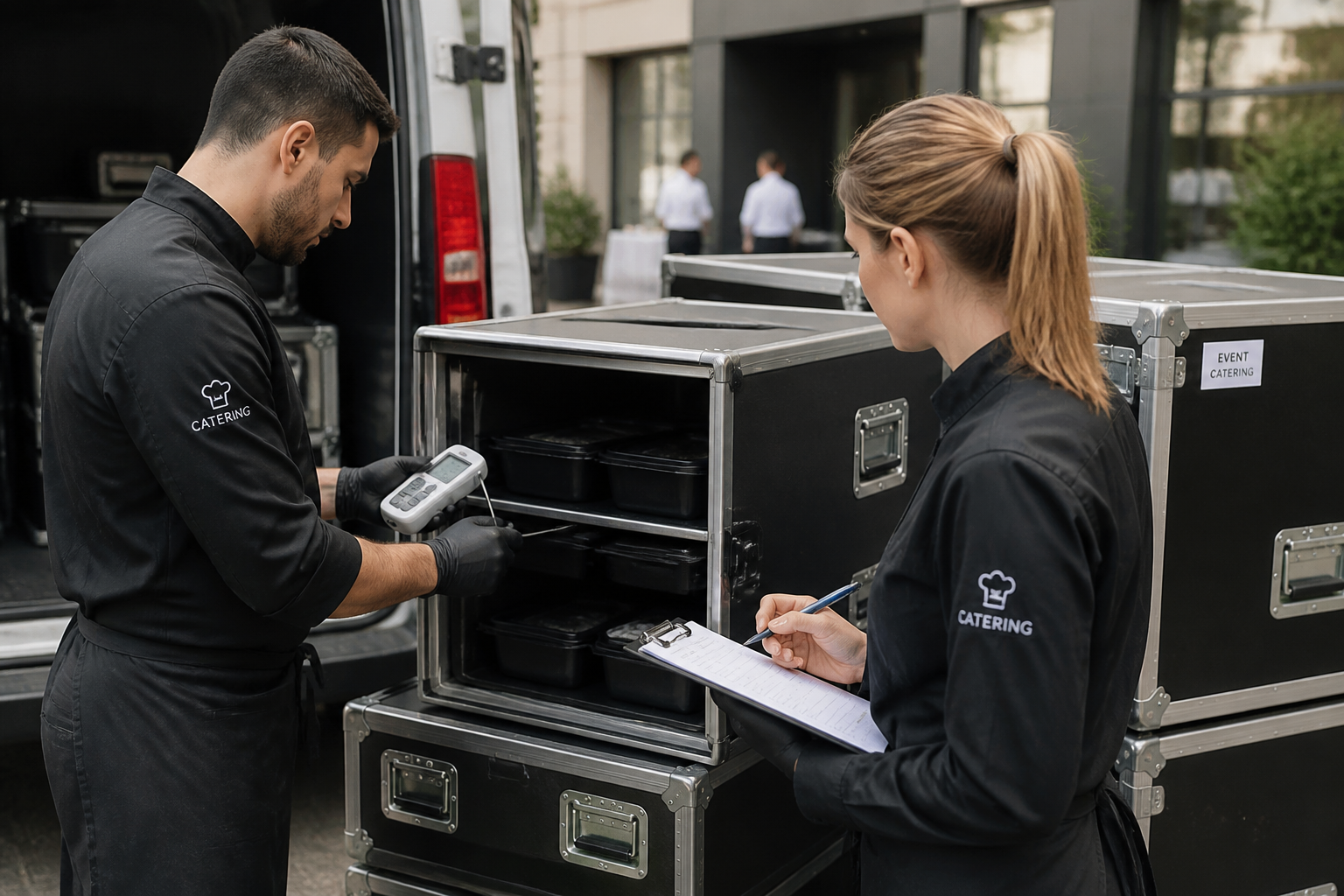
Catering
Mobile processes, multiple output points, and shifting teams benefit from a central system for monitoring, alerts, and reporting.
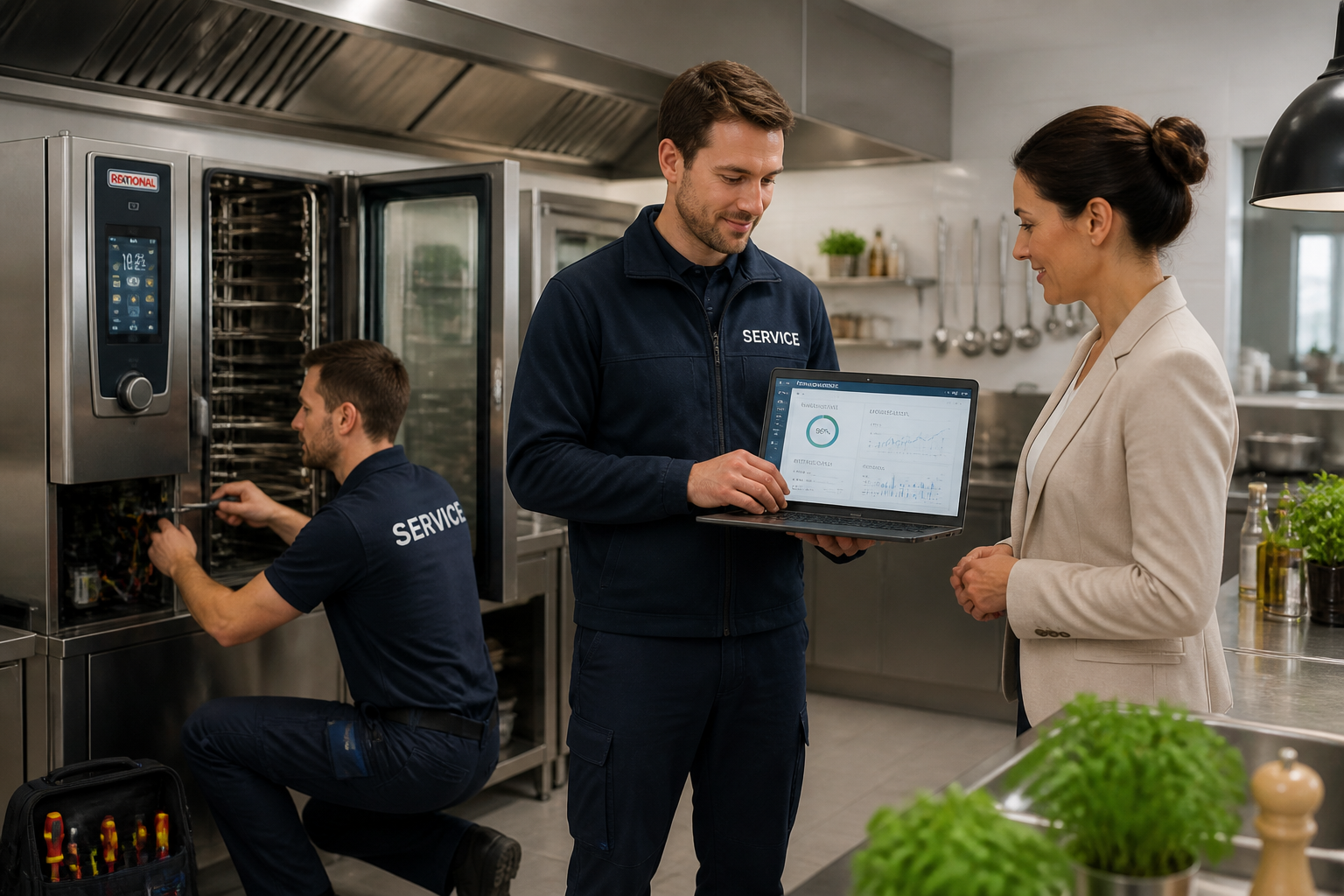
Service Partners
Organisations, technical responsibilities, and documented measures can be consistently managed on a single platform.
FAQ
Frequently asked questions about workflows
Do workflows cost extra?
No. Like all features, workflows are included in every tier.
Who creates workflows?
You create workflows in the control centre under “Processes”. If you like, we support you in setting up the first flows.
How is this different from an escalation chain?
An escalation chain notifies level by level until someone responds. A workflow decides when it starts and can also check conditions, wait, control devices or assign weekly plans.
Which devices can a workflow control?
Compatible devices with a control function, such as switching outputs, refrigeration controllers with remote access and food distribution devices. The workflow waits for the device to confirm; nothing is sent to devices that are offline. We will clarify with you which of your devices are included.
Can I trace what a workflow did?
Yes. Every run is recorded in the history with status, steps, result and duration. Failed steps are retried automatically; if an error remains, the person who published the workflow is informed.
Set up workflows for your kitchen
In a demo we show you workflows using examples from your operation and set up the first flows with you.

Persönlicher Ansprechpartner
Christofer Weßeling
Founder & Managing Director · Weslink GmbH
We show Kibi Scada live on your equipment, advise you personally on integration and onboarding, and support the rollout in your operation.
Last updated: